Scordle
Guide · 2 minutes

How to share a score to Scordle

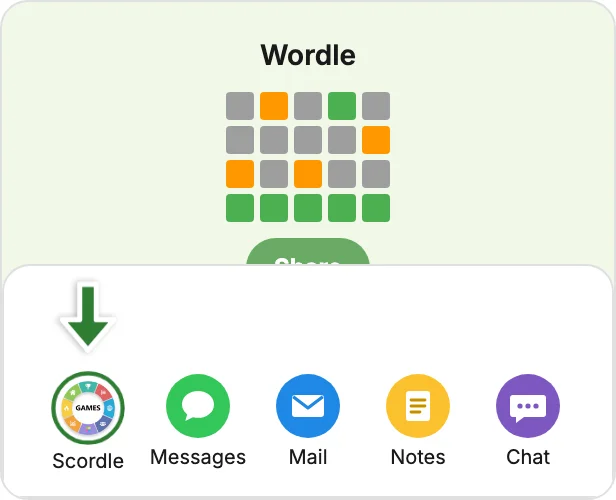
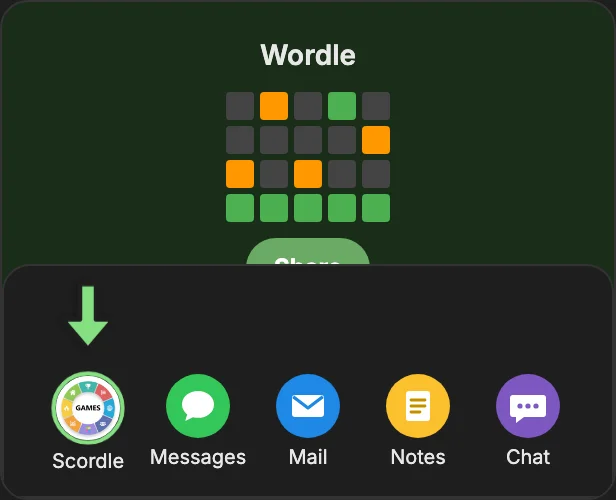
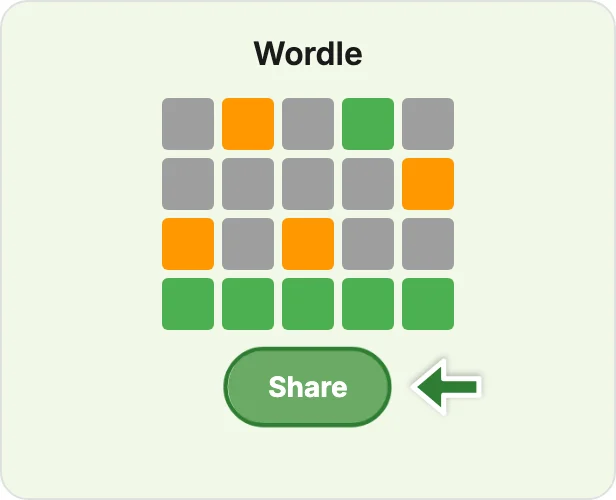
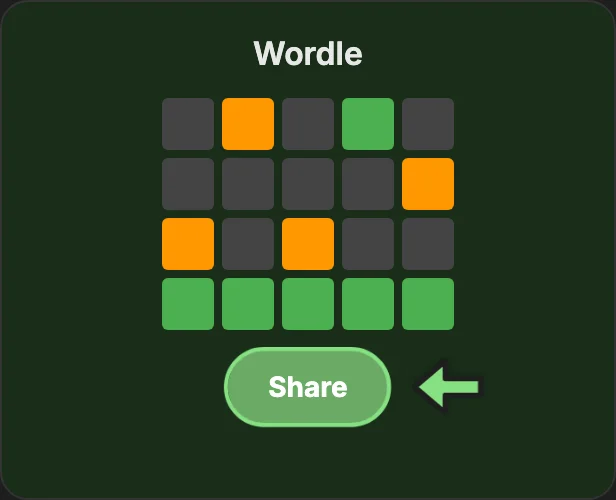
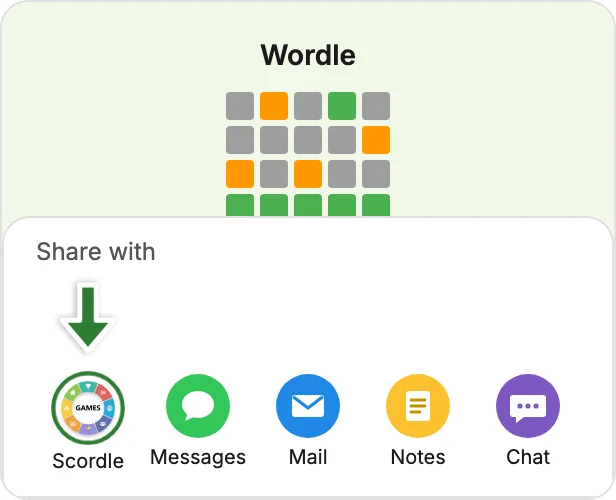
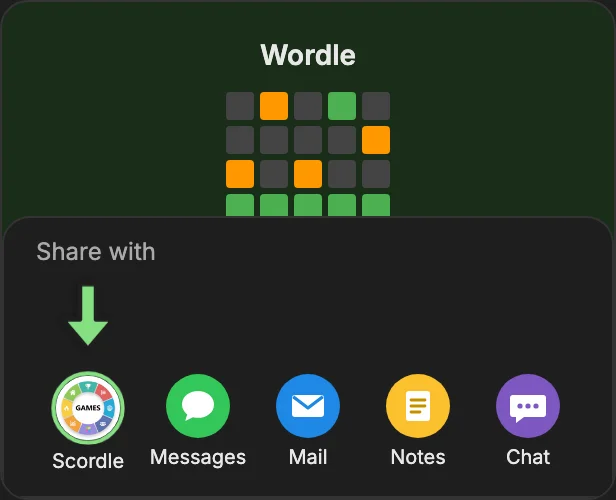
When you finish a game, tap its Share button and pick Scordle. The first time, Scordle isn't in your share row yet. Here's how to find it.

On an iPhone

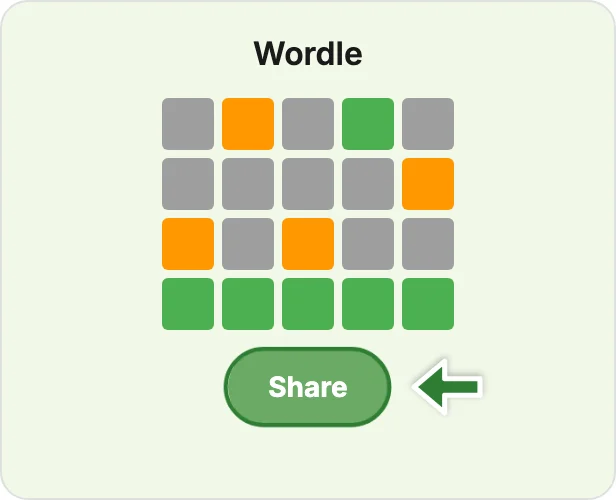
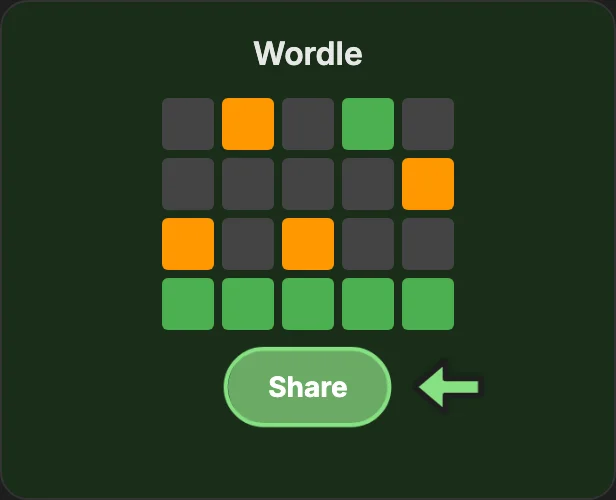
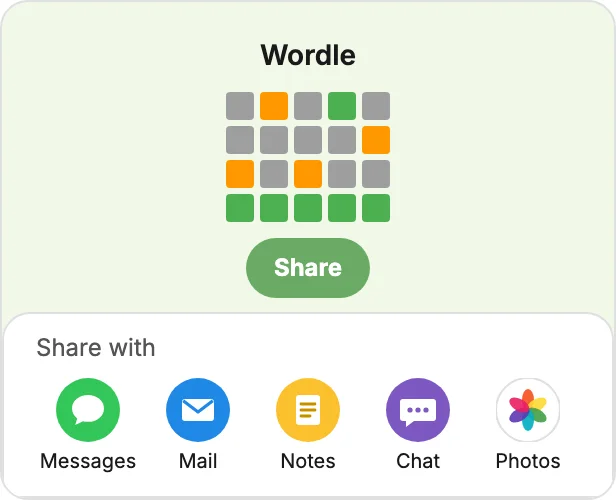
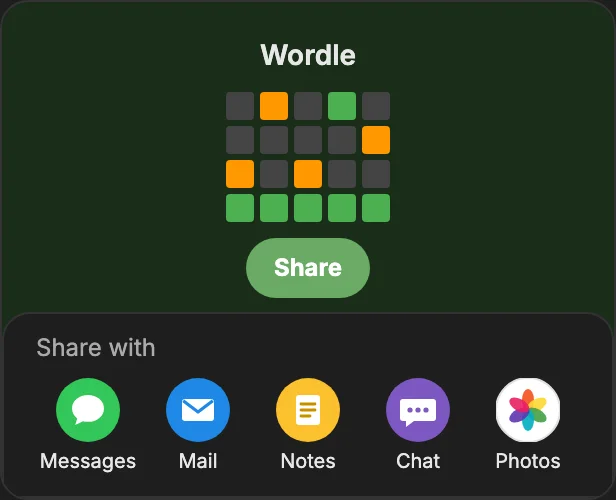
  1. Tap Share.When you finish your game, tap its Share button.Wordle's finished result, with an arrow pointing at its Share buttonWordle's finished result, with an arrow pointing at its Share button
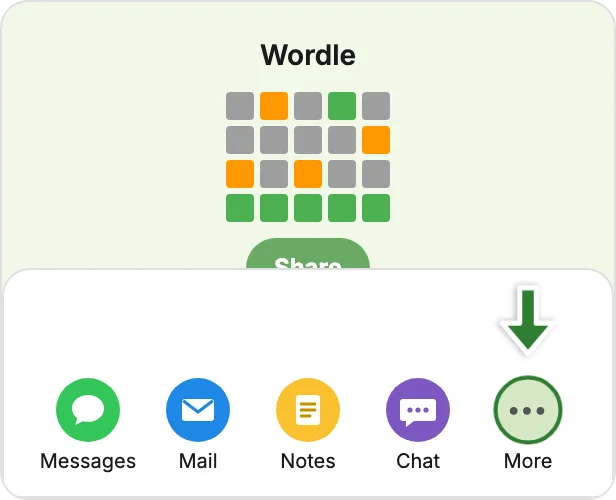
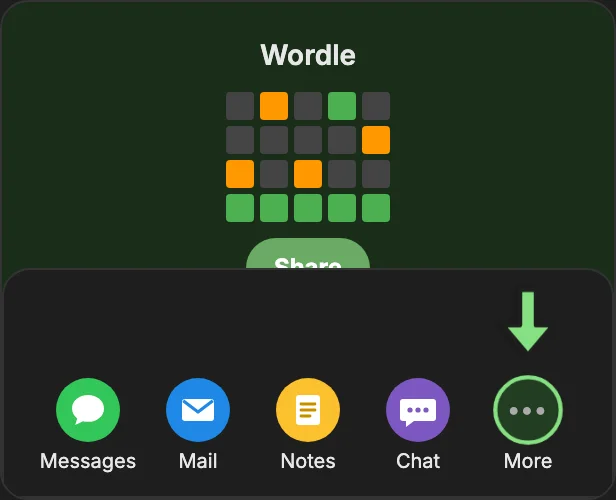
  2. Swipe along the row and tap More.Scordle isn't in the list of apps for your first share so we need to find it by tapping More.The share sheet's row of apps without Scordle, with an arrow pointing at MoreThe share sheet's row of apps without Scordle, with an arrow pointing at More
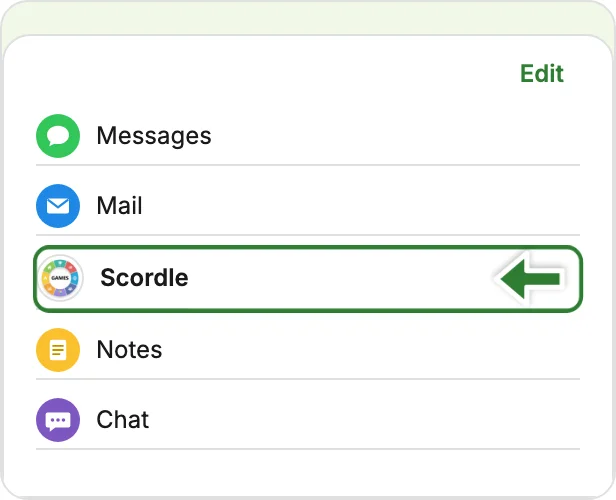
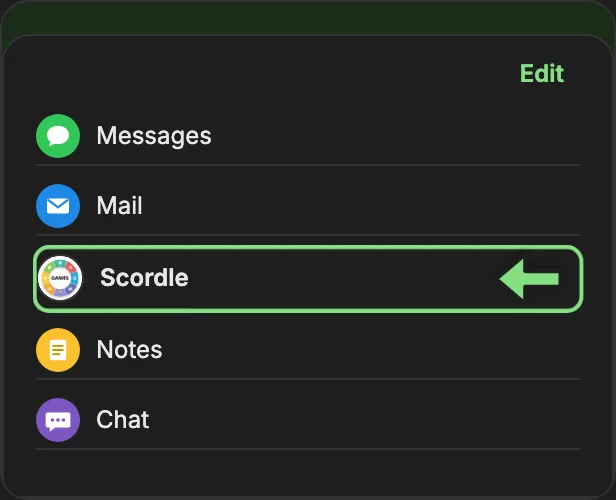
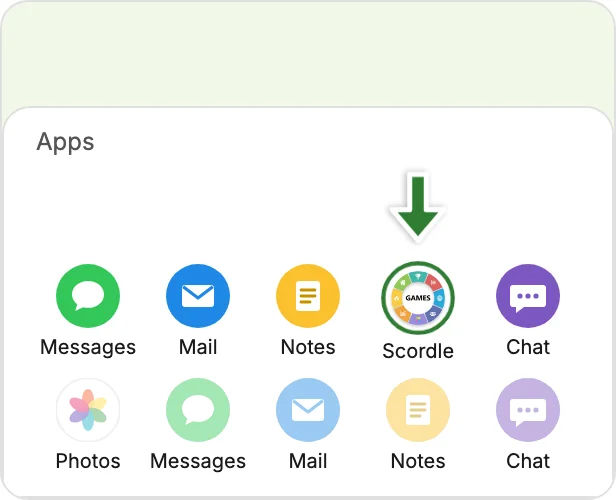
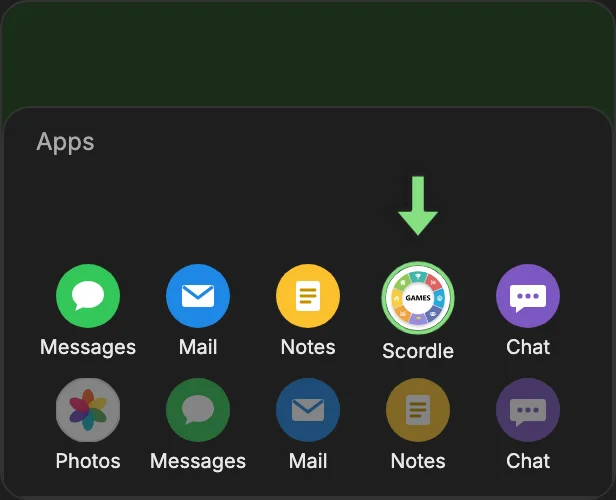
  3. Tap Scordle.Swipe through your apps to find Scordle and tap it.The list of apps, with an arrow pointing at ScordleThe list of apps, with an arrow pointing at Scordle
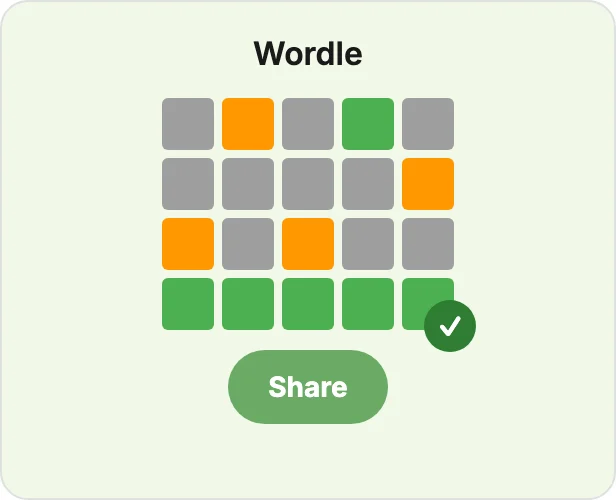
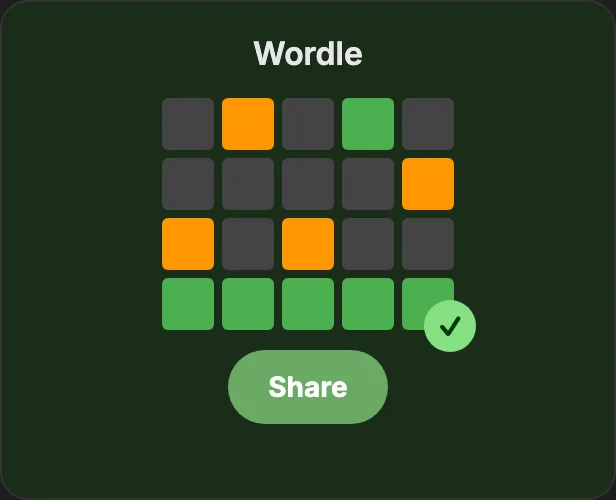
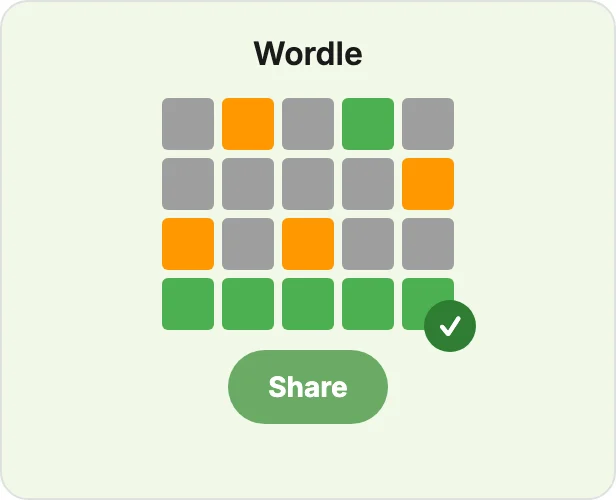
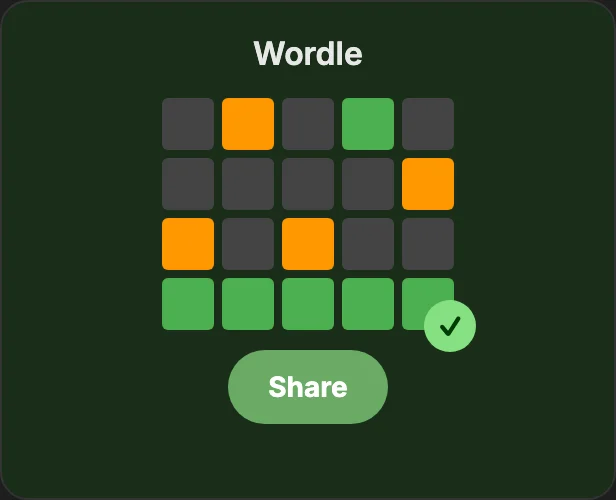
  4. That's it.Your score is in Scordle.Wordle's result with a green tick: the score is in ScordleWordle's result with a green tick: the score is in Scordle

Make it permanent (optional)

After a few shares, Scordle moves into the front row by itself. Here's how to add it as a favourite now.

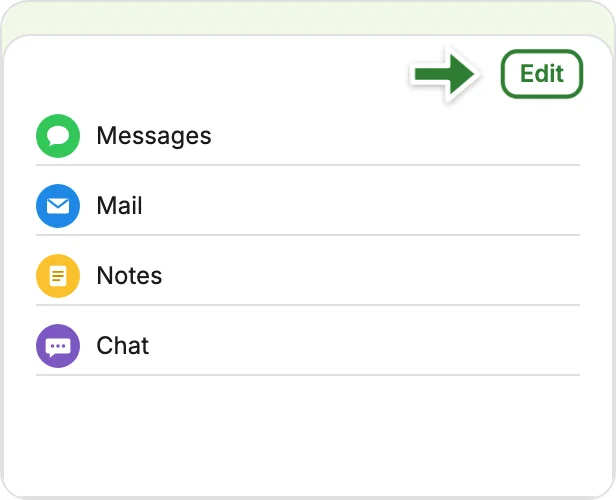
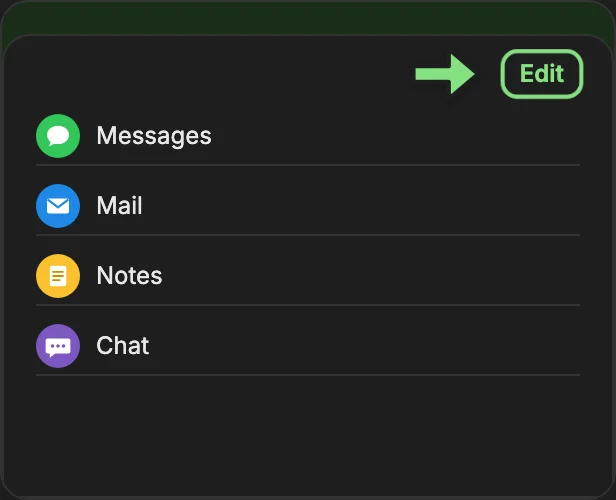
  1. Tap More, then Edit.To add Scordle as a favourite, tap More, then Edit at the top of the list.The list of apps, with an arrow pointing at EditThe list of apps, with an arrow pointing at Edit
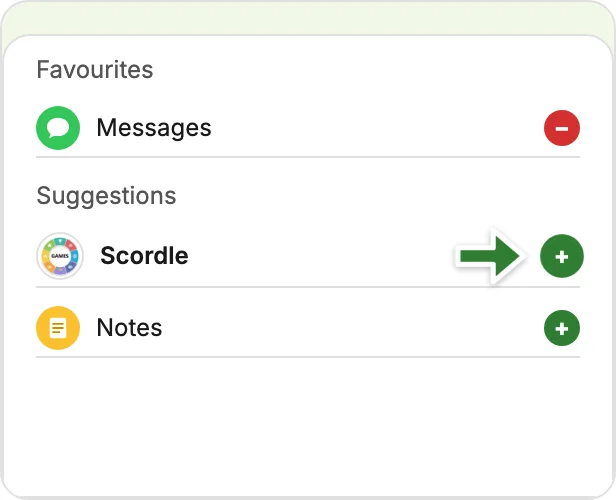
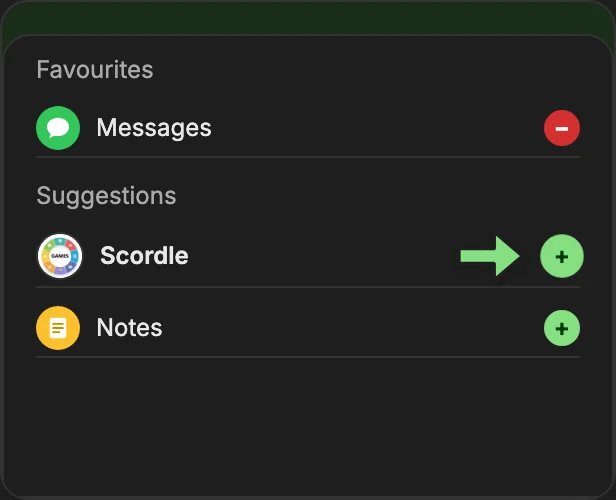
  2. Add Scordle to Favourites.Tap the + icon next to Scordle to add it as a sharing Favourite.The Favourites list, with an arrow pointing at the + next to ScordleThe Favourites list, with an arrow pointing at the + next to Scordle
  3. Done.Now Scordle is always easy to find in your apps when sharing.The share sheet with Scordle first in the row of appsThe share sheet with Scordle first in the row of apps

On an Android phone

  1. Tap Share.When you finish your game, tap its Share button.Wordle's finished result, with an arrow pointing at its Share buttonWordle's finished result, with an arrow pointing at its Share button
  2. Scordle isn't there yet.Scordle isn't in the list of apps for your first share so we need to add it.The share sheet's row of apps, without ScordleThe share sheet's row of apps, without Scordle
  3. Find Scordle and tap it.Swipe through your apps to find Scordle and tap it.All your apps, with an arrow pointing at ScordleAll your apps, with an arrow pointing at Scordle
  4. Next time, it's there.Next time you share a score, Scordle will show in your list of apps.The share sheet with Scordle first in the row of apps, and an arrow pointing at itThe share sheet with Scordle first in the row of apps, and an arrow pointing at it
  5. That's it.Your score is in Scordle.Wordle's result with a green tick: the score is in ScordleWordle's result with a green tick: the score is in Scordle

Games that copy their result

Some games copy your result instead of sharing it. Here's how to add it.

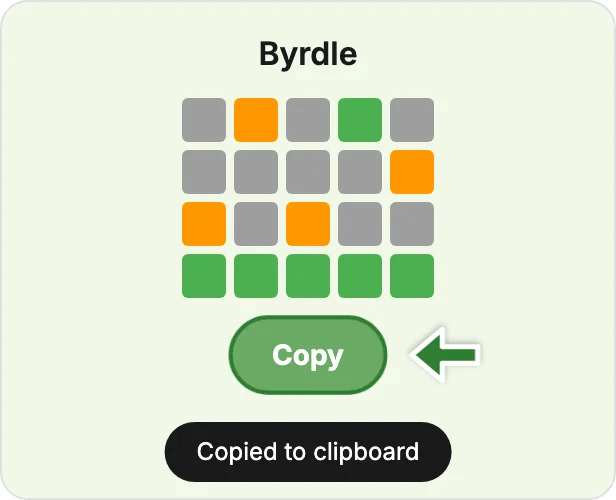
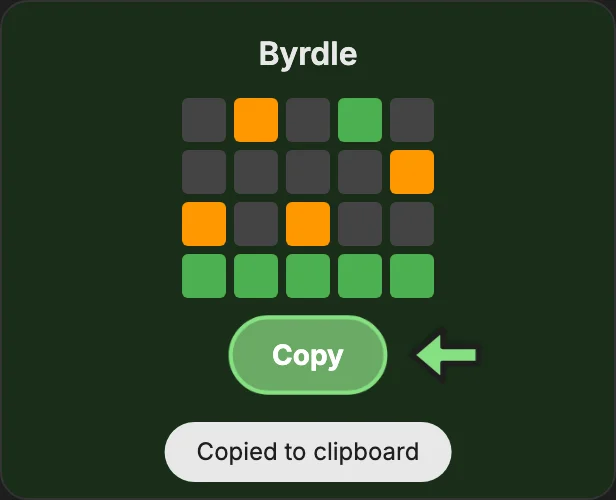
  1. Tap Copy.When you finish the game, tap its Copy button.Byrdle's finished result, with an arrow pointing at its Copy button, and Copied to clipboard showingByrdle's finished result, with an arrow pointing at its Copy button, and Copied to clipboard showing
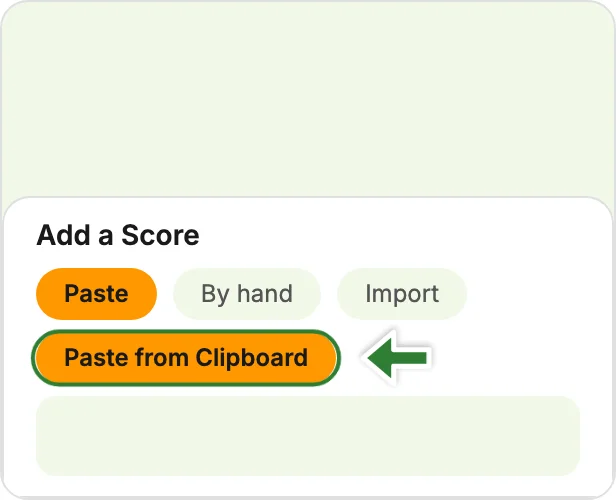
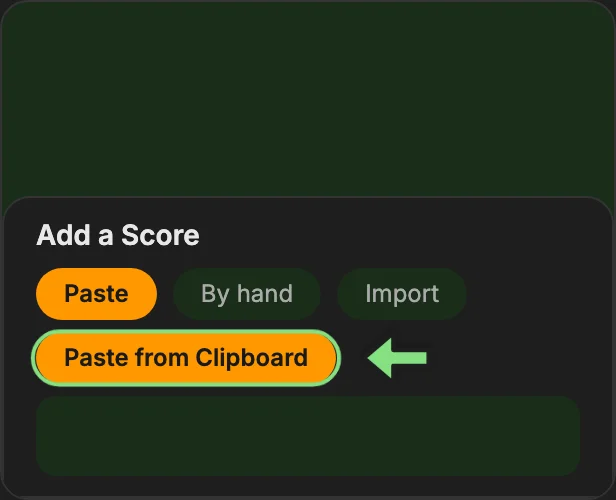
  2. Paste it into Scordle.Come back to Scordle, tap + on the Games tab, then Paste from Clipboard.Scordle's Add a Score sheet on Paste, with an arrow pointing at Paste from ClipboardScordle's Add a Score sheet on Paste, with an arrow pointing at Paste from Clipboard
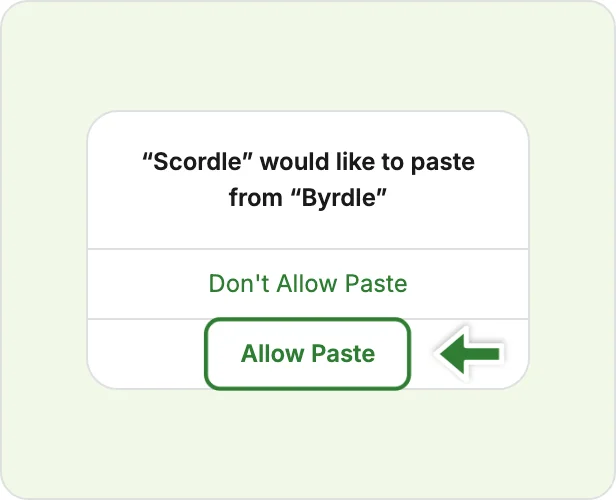
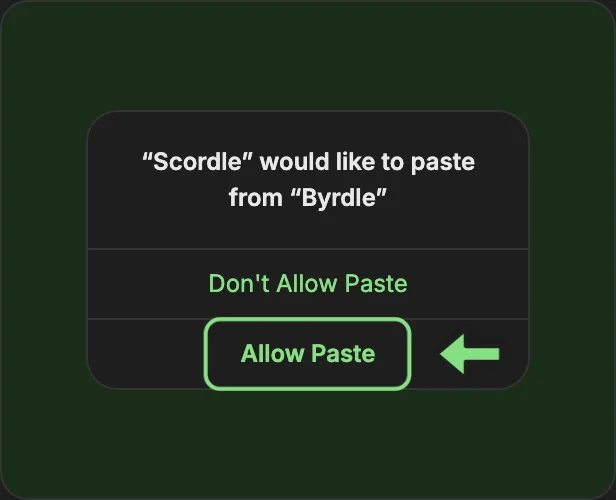
  3. iPhone only: tap Allow Paste.Your iPhone asks first.The iPhone asking to paste from Byrdle, with an arrow pointing at Allow PasteThe iPhone asking to paste from Byrdle, with an arrow pointing at Allow Paste

Want to type a score in instead? How to add a score

Every score, wherever it came from

Free forever